Installing Kong API Gateway and Konga with Docker
Running PostgreSQL, Kong and Konga on a single Docker network, then registering a Service and a Route and checking that requests get routed. For each command I explain why the step is there and what the ports and environment variables mean.

Introduction
Once you have several API servers, putting a reverse proxy like Nginx in front of each one and keeping them all in sync gets tedious. A common answer is to route every client request through a single API Gateway and handle cross-cutting concerns like routing, authentication and logging there. In an MSA setup, where services are split up finely, it’s practically a must.
There are plenty of API Gateway options, including Kong, KrakenD and Spring Cloud Gateway (SCG). I decided to try Kong. This post walks through installing Kong and its admin UI, Konga, with Docker, up to the point where the first route works.
1. Kong and Konga 🦍
Kong is an API Gateway built on OpenResty, which runs Lua scripts on top of Nginx. Routing rules and plugin settings are stored in a database, and most features come as plugins you can attach and detach.
Konga is an open-source admin UI that lets you drive the Kong Admin API from a screen. pantsel/konga is the one most people use.
This setup has three parts:
| Component | Role |
|---|---|
| Database (PostgreSQL) | Stores Services, Routes, credentials and plugin settings. Konga keeps its own data here too |
| Kong | Receives client requests and routes them to services according to the registered rules |
| Konga | Calls the Kong Admin API so you can manage settings from a UI |
Kong can be installed from distro packages, with Docker, as a Kubernetes Ingress Controller, and so on. This post uses Docker.
2. The overall setup 🗺️
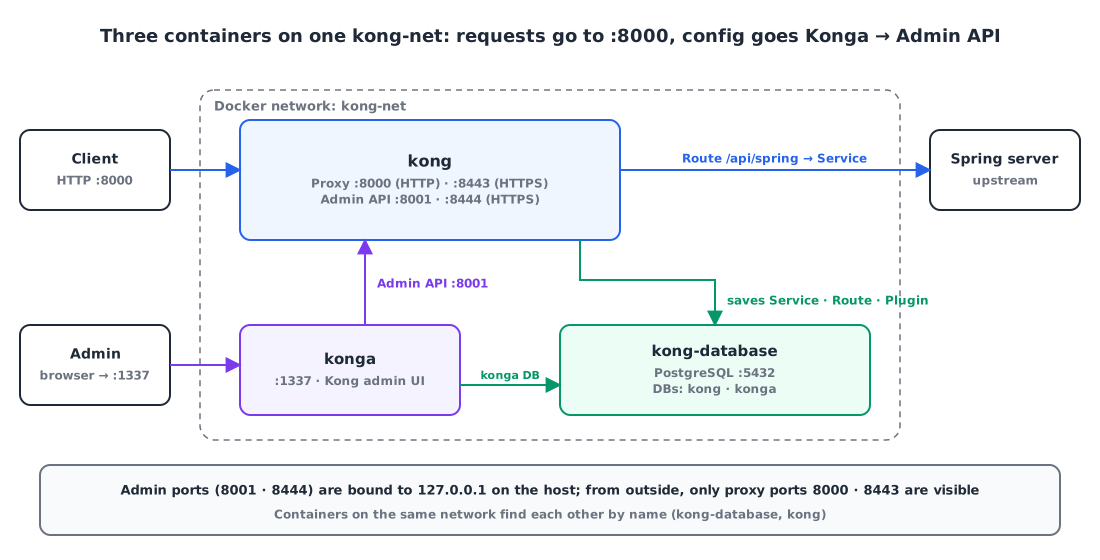
All three containers sit on a single Docker network called kong-net. On the same network, a container’s name (kong-database, kong) doubles as its hostname, so Kong can find the DB by name and Konga can find Kong by name.
Requests take one of two paths:
- Proxy path: client → Kong (8000) → Route rules → Service (upstream server)
- Admin path: admin → Konga (1337) → Kong Admin API (8001) → settings saved to the DB
3. Create the Docker network 🌐
Kong and the DB have to be on the same network to find each other, so create the network first.
1
docker network create kong-net
4. Start PostgreSQL and initialize the Kong DB 🐘
① Run PostgreSQL
1
2
3
4
5
6
7
docker run -d --name kong-database \
  --network=kong-net \
  -p 5432:5432 \
  -e "POSTGRES_USER=kong" \
  -e "POSTGRES_DB=kong" \
  -e "POSTGRES_PASSWORD=kong" \
  postgres:9.6
| Environment variable | Meaning |
|---|---|
POSTGRES_USER | User name |
POSTGRES_DB | Name of the database to create on first start |
POSTGRES_PASSWORD | User password |
--name kong-database matters: Kong and Konga connect to the DB by this name later on.
② Check the connection
Shell into the container and connect as the kong user. If you get a prompt, the DB is fine (exit with \q).
1
docker exec -it kong-database /bin/bash
1
psql -U kong
③ Create the Kong schema
The DB is empty at this point, so the tables Kong needs have to be created first. That’s what kong migrations bootstrap does. It only needs to run once, so I started it with --rm to remove the container when it finishes.
1
2
3
4
5
6
7
docker run --rm \
  --network=kong-net \
  -e "KONG_DATABASE=postgres" \
  -e "KONG_PG_HOST=kong-database" \
  -e "KONG_PG_USER=kong" \
  -e "KONG_PG_PASSWORD=kong" \
  kong:latest kong migrations bootstrap
| Environment variable | Meaning |
|---|---|
KONG_DATABASE | Database type to use (postgres) |
KONG_PG_HOST | DB host. Since it’s on the same network, use the container name kong-database |
KONG_PG_USER | DB user name |
KONG_PG_PASSWORD | DB user password |
5. Run Kong 🚀
1
2
3
4
5
6
7
8
9
10
11
12
13
14
15
16
docker run -d --name kong \
  --network=kong-net \
  -e "KONG_DATABASE=postgres" \
  -e "KONG_PG_HOST=kong-database" \
  -e "KONG_PG_USER=kong" \
  -e "KONG_PG_PASSWORD=kong" \
  -e "KONG_PROXY_ACCESS_LOG=/dev/stdout" \
  -e "KONG_ADMIN_ACCESS_LOG=/dev/stdout" \
  -e "KONG_PROXY_ERROR_LOG=/dev/stderr" \
  -e "KONG_ADMIN_ERROR_LOG=/dev/stderr" \
  -e "KONG_ADMIN_LISTEN=0.0.0.0:8001, 0.0.0.0:8444 ssl" \
  -p 8000:8000 \
  -p 8443:8443 \
  -p 127.0.0.1:8001:8001 \
  -p 127.0.0.1:8444:8444 \
  kong
The DB connection settings are the same as in the previous step. The rest:
KONG_PROXY_ACCESS_LOG,KONG_ADMIN_ACCESS_LOG,KONG_PROXY_ERROR_LOG,KONG_ADMIN_ERROR_LOG: send the proxy and Admin API access and error logs to stdout/stderr, so you can read them straight fromdocker logs kong.KONG_ADMIN_LISTEN: inside the container, the Admin API listens on all interfaces, because Konga on the same network needs to reach it.-p 127.0.0.1:8001:8001: on the host, though, the Admin API is only bound to127.0.0.1. The Admin API can change any Kong setting, so it shouldn’t be exposed to the outside.
Kong uses four ports:
| Port | Purpose |
|---|---|
| 8000 | Accepts HTTP requests and proxies them to upstream services |
| 8443 | Accepts HTTPS requests and proxies them to upstream services |
| 8001 | Admin API (HTTP) |
| 8444 | Admin API (HTTPS) |
You can also configure the proxy (KONG_PROXY_LISTEN) to open only HTTP or only HTTPS.
6. Install Konga 🖥️
① Prepare the Konga DB
Konga needs somewhere to store its own data too. Rather than running a separate DB server, I pointed it at a konga database on the same PostgreSQL. -c prepare is a one-off command that sets up Konga’s tables, so it also runs with --rm.
1
2
3
4
5
6
docker run --rm \
  --network=kong-net \
  pantsel/konga:latest \
  -c prepare \
  -a 'postgres' \
  -u postgresql://kong:kong@kong-database:5432/konga
② Run Konga
1
2
3
4
5
6
7
8
docker run -p 1337:1337 \
  --network=kong-net \
  -e "TOKEN_SECRET=TOKEN_SECRET" \
  -e "DB_ADAPTER=postgres" \
  -e "DB_URI=postgresql://kong:kong@kong-database:5432/konga" \
  -e "NODE_ENV=production" \
  --name konga \
  pantsel/konga
TOKEN_SECRET is what Konga signs its login tokens with. The example uses a literal string, but in real use it should be something hard to guess.
③ Connect Konga to Kong
Open localhost:1337 in a browser and connect to the Kong Admin API. Konga is also on kong-net, so you can give the Admin API address by container name (e.g. http://kong:8001).
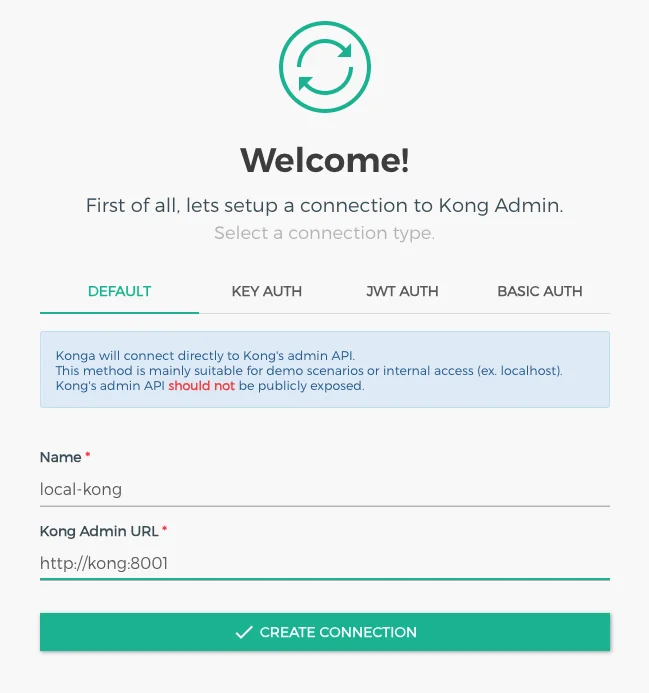
7. Register a Service and a Route, then test 🔀
Routing in Kong is made of two objects:
| Object | Meaning |
|---|---|
| Service | The upstream server requests are sent to (e.g. the Spring server’s address) |
| Route | The rule for which requests go to that Service (e.g. the path /api/spring) |
① Register a Service
First, register the backend server that will receive requests as a Service.
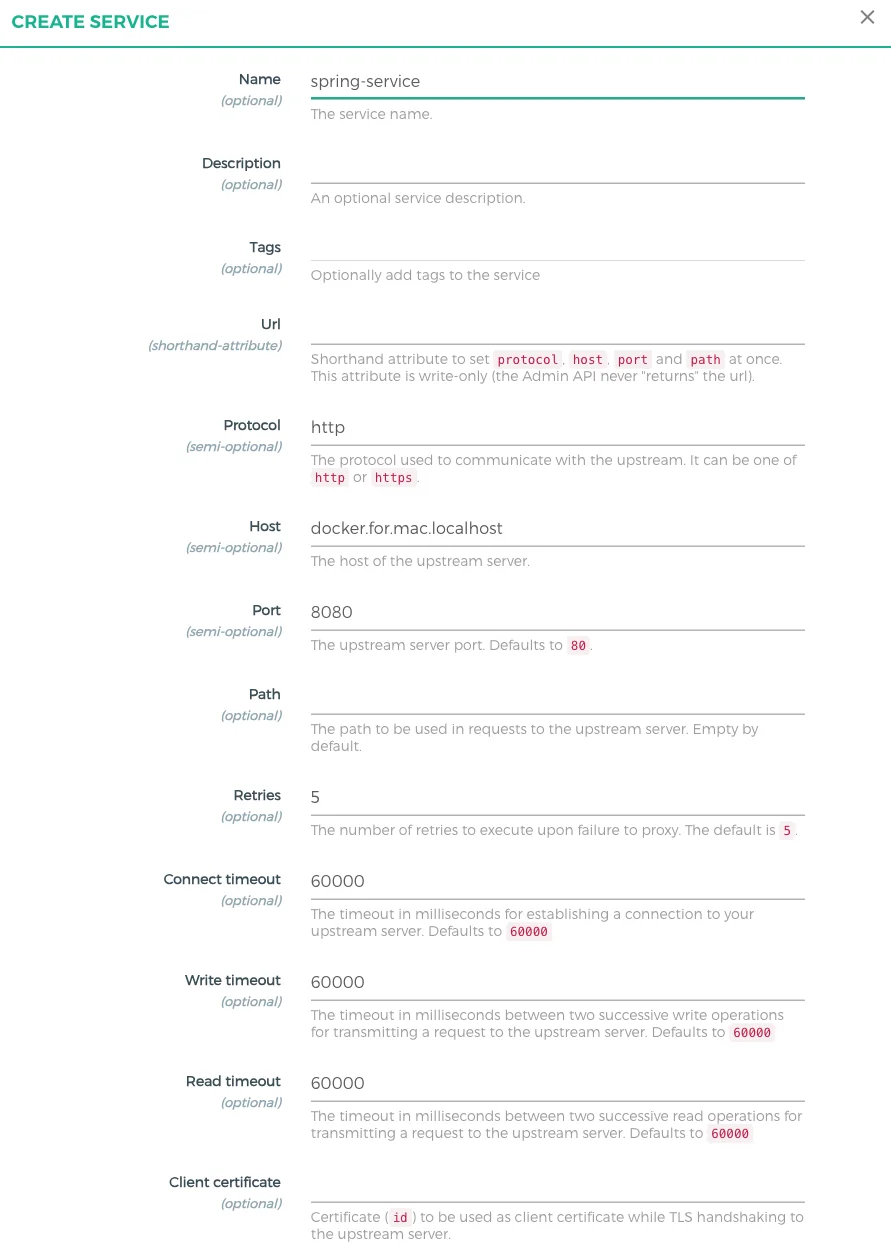
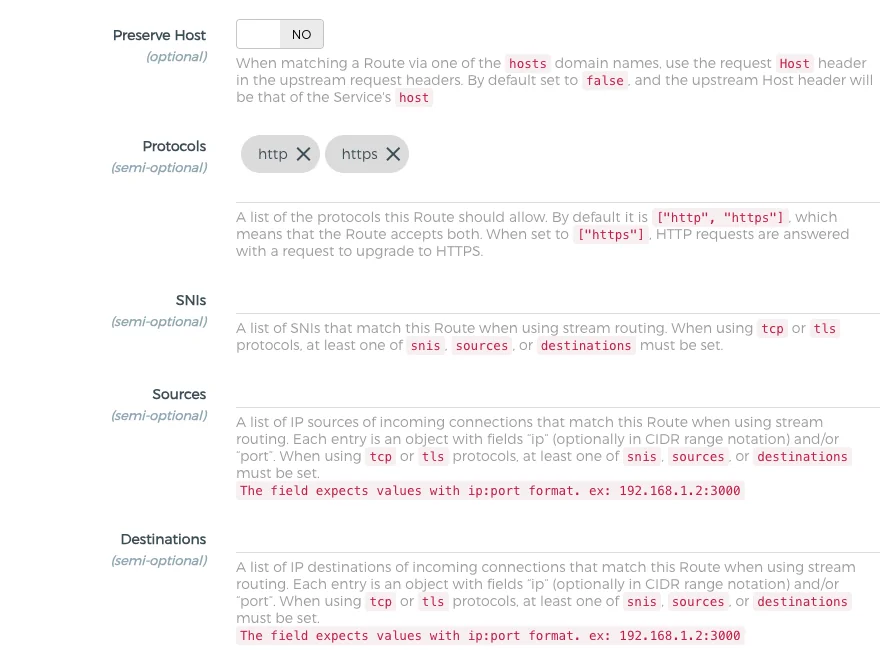
② Register a Route
Attach a Route to that Service. Here, requests coming in on the path /api/spring go to this Service.
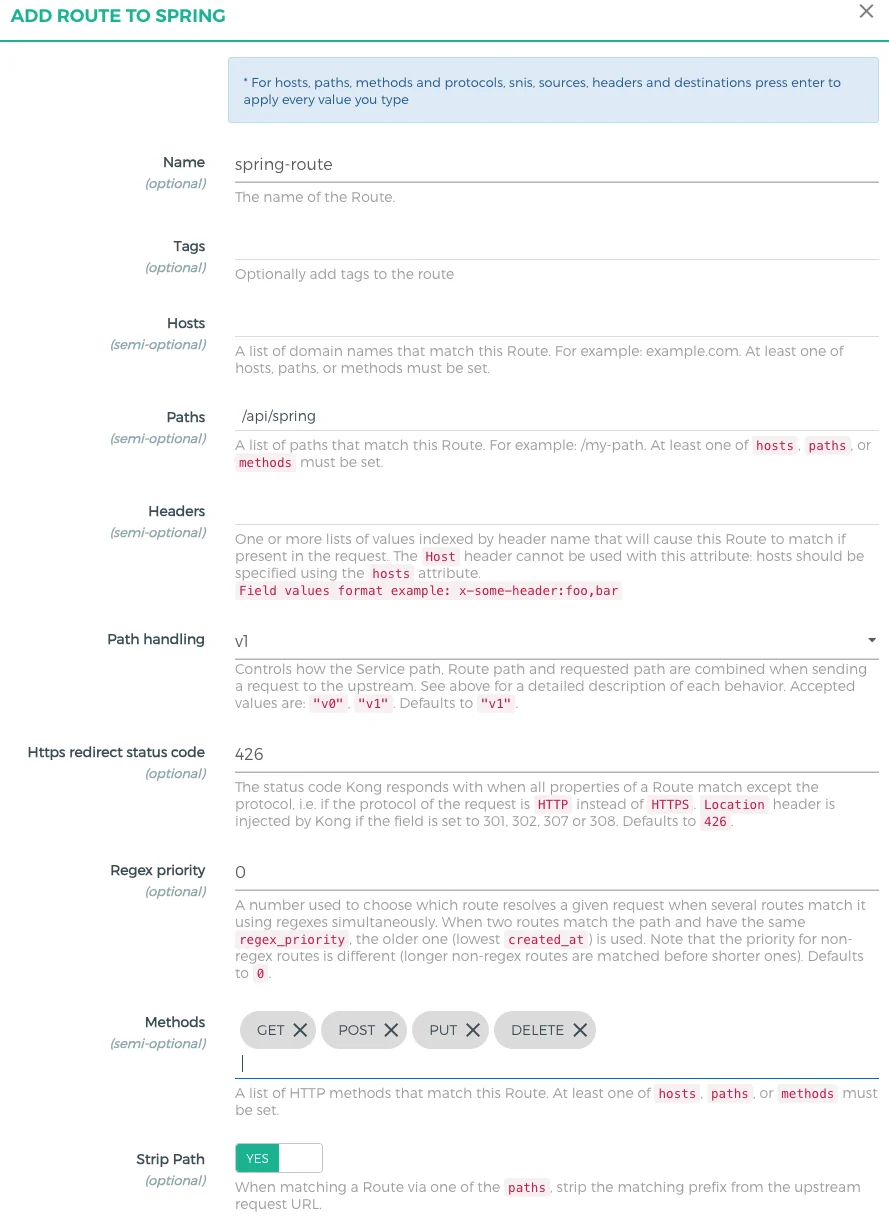
③ Test it
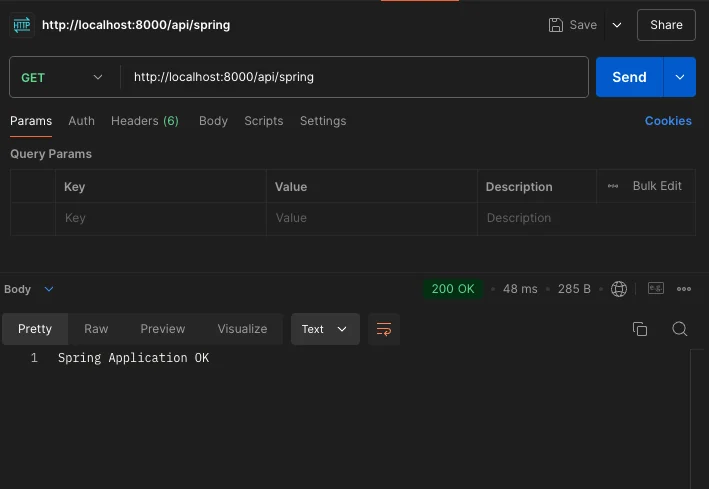
Now call the registered path /api/spring on Kong’s proxy port 8000, and Kong hands the request to the Spring server and the response comes back.

Wrap-up
- Put all three containers on the same Docker network and they find each other by container name. That’s why
KONG_PG_HOSTand Konga’s connection address use names. - Kong won’t start against an empty DB. Create the schema first with
kong migrations bootstrap. - Open the Admin API inside the container, but bind it to
127.0.0.1on the host. Only the proxy ports face the outside. - Routing is a Service (where to) combined with a Route (which requests).
References